Solution
Know what is scheduled, who is going, and what still needs attention.
Book jobs, assign technicians, and keep the day clear for the office and the field.
Best for
Scheduling
Independent operators and growing multi-crew shops that need a clear daily schedule, simple dispatching, and job details that travel with the work.
Start free trialSee the day in the office and on the truck
Sample-data captures from the office calendar and the native app, not a live customer.
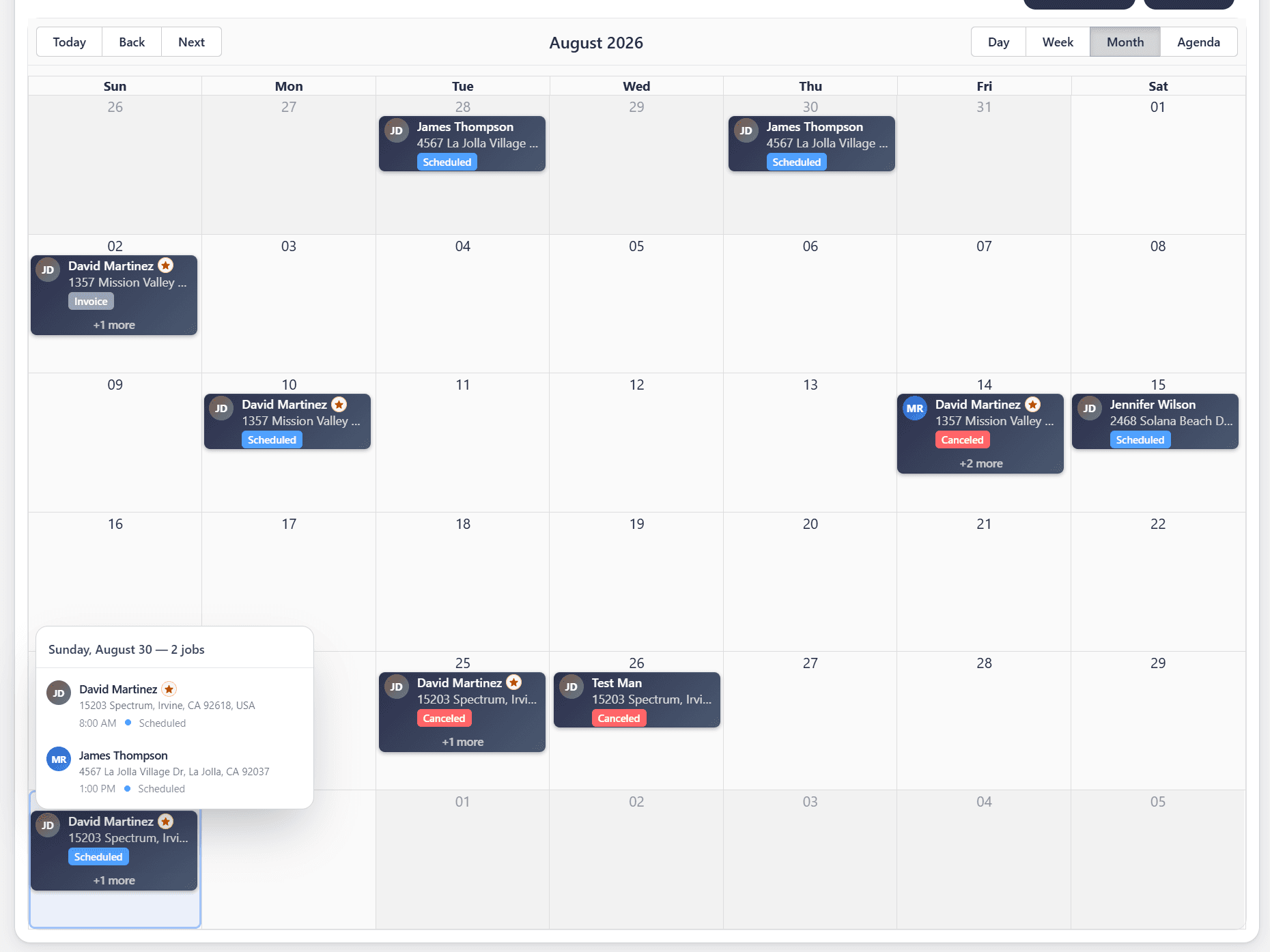
The office books the week on a shared calendar. Day, week, month, and agenda stay on the same jobs.
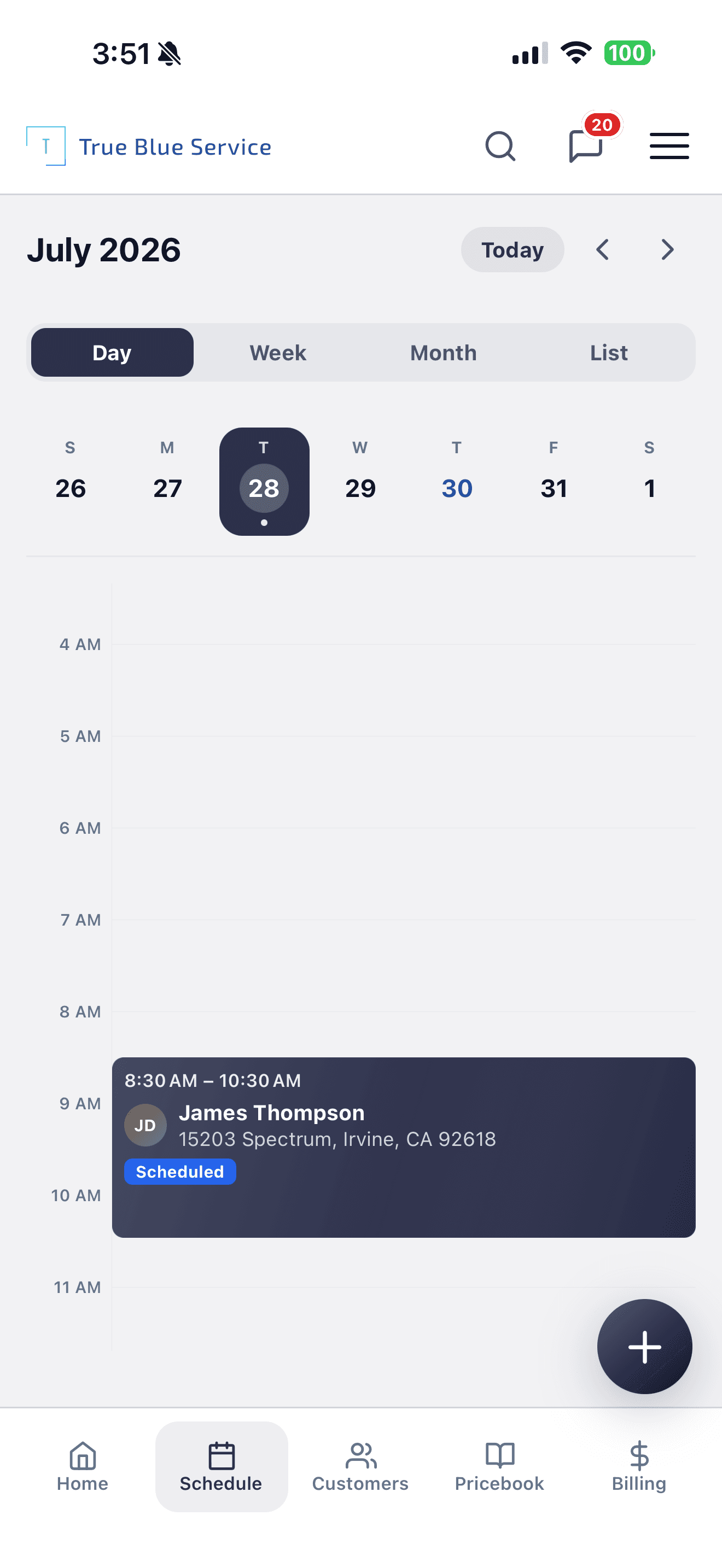
Technicians open the same day from the phone: Day, Week, Month, or List.
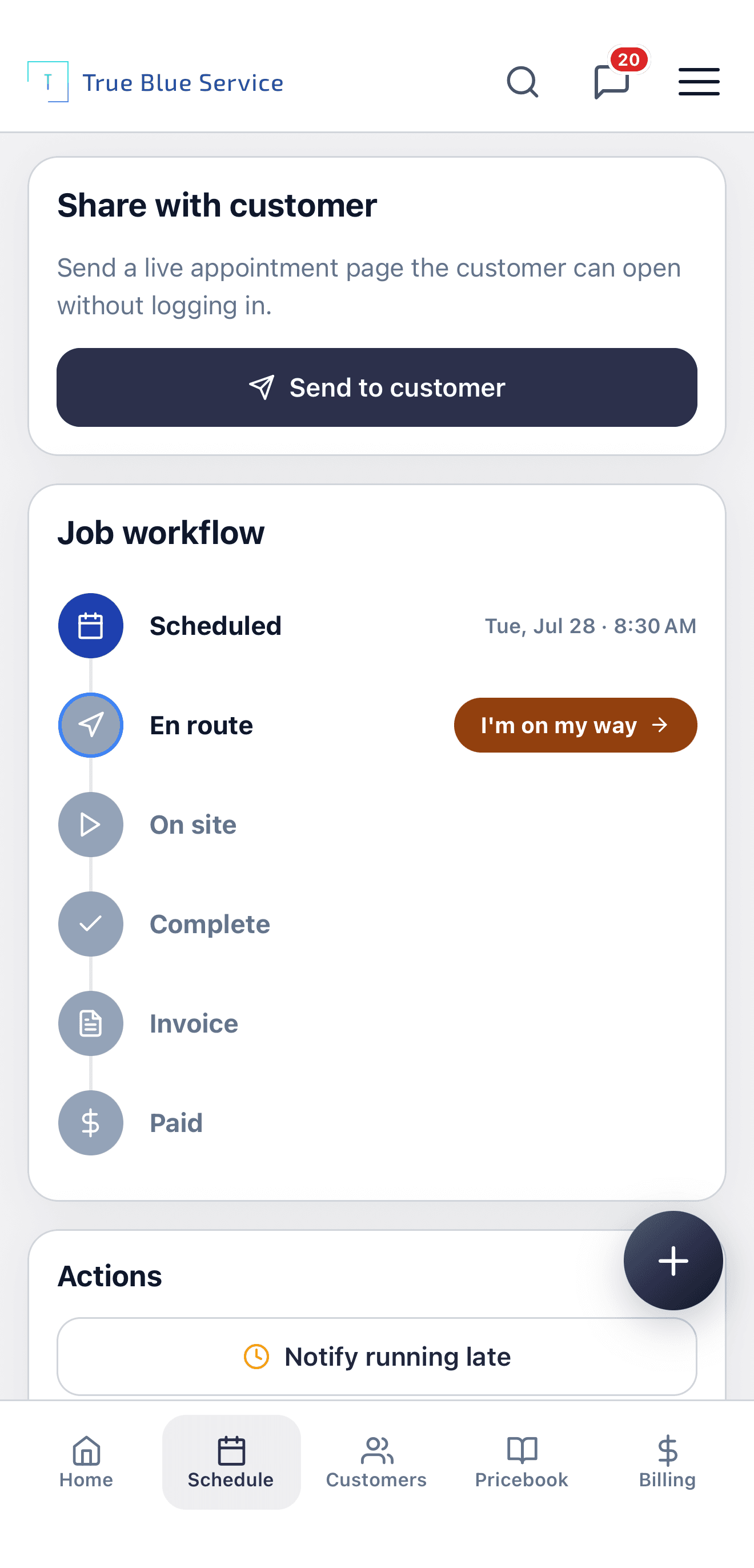
When the visit starts, status updates on the same job the office scheduled.
From booked visit to the truck
- 1
Book the visit
Pick the customer, service address, time window, and technician. Timing, notes, and history stay on the job instead of a side spreadsheet.
- 2
See who is going
Day, week, month, and list or agenda views share the same jobs. The office can scan the month; the field can open today.
- 3
Watch for overlaps
The calendar flags when a technician is already booked in that window. Technicians cannot double-book themselves. Admins and dispatchers can still book after they review the conflict.
- 4
The field opens the same job
The technician opens the visit from Today's jobs or the schedule. Status, notes, and photos write back to the record the office just booked.
Example: Scheduling a technician for a morning visit
The office books a water-heater visit for Tuesday morning and assigns the technician. Month view shows the day is covered. On the truck, the same visit is on the phone schedule at 8:30. Marking on the way updates that job — not a second field calendar.
See the day in one place
Book jobs, assign technicians, and keep a shared calendar for the office and the field. Upcoming work and who is going stay on the same schedule, so dispatch is not a separate spreadsheet.
Keep job details with the visit
Timing, notes, and customer history stay tied to the job. When the schedule changes, the people doing the work still see the record they need.
How True Blue Service helps
Plan the day without juggling separate calendars
Assign the right technician and see upcoming work
Keep timing, notes, and customer history tied to the job
Questions owners ask about the calendar
- Do office and field see the same schedule?
- Yes. Web and the iOS and Android apps share the same jobs, assignments, and status. Technicians sign in to the company account; they do not get a second calendar product.
- Can I switch day, week, month, and list?
- Yes. The office calendar has day, week, month, and agenda. Admins and dispatchers can also open a map of that day's job pins from the saved service addresses. The native app has day, week, month, and list. Opening a job and going back keeps the view you were on.
- Does it auto-schedule recurring membership visits?
- No. You still book each visit. Memberships can mark a customer as a member and cover an included visit on the invoice; they do not place repeating jobs on the calendar by themselves.
- What if two jobs overlap for the same technician?
- The calendar flags the overlap. Technicians are blocked from booking the conflict. Admins and dispatchers can override after they review it.
See how the field runs the visit you just booked
Explore more
Related industries
Explore more
Related pages
Mobile App
Give technicians a native iOS and Android app for jobs, photos, notes, and signatures — the same account as the office.
Customer Management
Keep customer details, service addresses, notes, files, and history in one place.
Estimates
Create clear estimates, send them to customers, and turn approved work into jobs.
Want to see it with your workflow?
Start a trial, review pricing, or keep browsing before you decide.